If you searched for "STL files for laser engraving" hoping to find files made specifically for lasers, you will have noticed they mostly do not exist. They do not need to. A laser cannot carve depth, but it can fake it beautifully, and the same bas-relief STL that runs on a router will run on an xTool, a Glowforge or an Ortur once you do one conversion step properly.
This is the guide we wish had existed when laser owners started writing to ask "will these work on mine?" The answer is yes. The workflow is different from carving, a few things that work on a router fail on a laser, and the conversion step, which most tutorials wave past, is where the result is decided.

In this guide
- What a laser is actually doing with a relief file
- The conversion: STL to grayscale depth map
- Diode, CO2 or fibre
- Materials that read, and materials that fight you
- Grayscale versus 3D sliced mode
- Settings to start from
- Five mistakes that turn a good file into mud
- Which designs work best on a laser
- Laser Studio: the whole workflow in one app
- Questions people ask
What a laser is actually doing with a relief file
A router carves a relief by removing wood to different depths: high points stay tall, low points get cut away. A laser removes almost nothing. What it varies is intensity: more power or slower travel burns darker, less burns lighter, and it can do that thousands of times across a panel.
That is why relief files work on a laser at all. A bas-relief STL is, underneath, a height map: every point on the surface has a height. Turn height into brightness, so the highest points are white and the lowest are black, and you have a grayscale image. Burn that image with the laser's power following the tone, and the eye reads the shaded result as relief, even though the surface is flat. Look at the picture above. Nothing on that maple is more than a few hundredths of a millimetre deep.
Two consequences follow. Detail that depends on a shadow cast by real depth is gone, so the file has to carry its depth in tone. And the conversion from height to tone is everything: do it carelessly and a file with twelve distinct depth layers becomes a burn with three.
The conversion: STL to grayscale depth map

You need a grayscale PNG where brightness equals height. Five ways to get one:
- Laser Studio, our own app. It was built for exactly this step: open the STL, and it renders a true orthographic height map at 8-bit or 16-bit, with the background sitting on black and the highest point on white, at whatever size and DPI you type in. It also does the things the other routes cannot: a 3D-illusion render for machines that only burn tone, nine dithering modes, a calibration wedge for your material, and export files ready for your own laser software, such as LightBurn. There is a section on it below.
- A free browser converter. Search for a tool called STL2PNG that runs in the browser; it produces a real heightmap with a top view, a resolution setting and a depth offset. A caution about other "STL to PNG" sites: several of the popular ones simply take a screenshot of the model in a 3D viewer. That is a shaded picture, not a depth map, and burned into wood it gives you a rendering with lighting baked in rather than relief. If a converter shows you a rotating model and asks where you want the camera, it is the wrong kind.
- LightBurn itself, from a mesh. Recent versions of LightBurn can import an STL and render it to a depth map directly, which is the fewest steps if you already own it. Set the resolution to match your engraving DPI, not higher.
- A resin slicer. Most resin 3D-print slicers can export a depth map of a model lying flat. Import, orient the carved face up, export.
- Blender. Point an orthographic camera straight down at the model and render the Z depth pass. More control than any of the above, and a steeper hill to climb.
Whichever tool you use, check three things in the result before you burn anything:
- The background is true black and the highest point is true white. If the map only uses the middle greys, the burn will be flat. Most converters have a "normalise" or "stretch" option; use it.
- The gradient is smooth, not banded. Export at 16-bit if your tool offers it, or at least at 8-bit without compression. JPEG a depth map and you will burn the compression blocks.
- Resolution matches the job. A 300 mm panel at 254 lines per inch is about 3,000 pixels wide. A 6,000-pixel map does not add detail; it adds hours.
Diode, CO2 or fibre
Diode lasers (xTool D1 and S1, Ortur, Atomstack, Longer, Sculpfun)
The most common laser in a home shop and perfectly capable of relief work. A modern 10 to 40 W diode has more than enough resolution for a smooth gradient. Its limits are speed (it is slow on big panels) and material: it wants light woods, leather and slate, and it struggles on anything reflective or very dark.
CO2 lasers (Glowforge, OMTech, Thunder, Boss, Aeon)
More power and a smoother tonal range, so more distinct "steps" of depth per burn. Faster on large panels. Happy on hardwoods, plywood, hardboard, leather, acrylic and anodised aluminium. If you own one, relief engraving is one of the best things it does.
Fibre and MOPA lasers
Fibre lasers on metal can do genuine deep engraving, removing material layer by layer to reproduce a relief three-dimensionally in steel or brass. That is closer to machining than to engraving, and it is a topic for another day, but yes, it works, and coins and medallions cut this way are remarkable.
Materials that read, and materials that fight you

A relief engraving is a tonal image, so the material has to be quiet enough for tone to show.
| Material | Reads? | Notes |
|---|---|---|
| Maple, birch plywood, basswood | Excellent | Pale, even, fine grain. The default choice. |
| Cherry, alder | Very good | Warm base tone; burns to a rich brown. |
| Bamboo | Good | Even, but the nodes show through big panels. |
| Slate coasters | Excellent | Engraving goes pale on dark stone, so invert the map (see below). |
| Full-grain leather | Excellent | Crisp and dark. Burns aggressively; start at low power. |
| Hardboard, MDF | Good | Perfectly even and cheap. Ventilate; the glue smokes. |
| Figured walnut, oak, ash | Poor | The grain competes with the image. If you must, sand to 320 and seal first. |
| Pine and softwoods | Poor | Early and late growth burn at different rates and stripe the image. |
| Anodised aluminium (CO2 or fibre) | Good | Engraving strips the colour to bare metal, so invert the map. |
On flatness. A depth burn on a 400 mm panel needs the surface flat to within about half a millimetre across its whole width, or the focus drifts and the high spots come out faint. Clamp it, or shim it, and check with a straightedge before you start. A warped board is the most common cause of a burn that fades on one side.
Grayscale versus 3D sliced mode
Laser software offers two different ways to turn a depth map into a burn, and they suit different jobs.
Grayscale (photo) mode varies power continuously with the tone of the map. One pass, fast, and it produces the shaded, photographic result in the pictures on this page. On wood this is nearly always what you want. Turn dithering off for a depth map, or set it to pass-through: dithering is for reproducing photographs with dots, and it turns a smooth height gradient into noise.
3D sliced mode (LightBurn calls it exactly that) treats the map as a stack of layers and engraves it in several passes, going deeper where the map is darker. It genuinely removes material and produces a shallow physical relief, which is spectacular on a CO2 or fibre machine and on materials like acrylic, hardboard and leather. It is much slower, and on a diode it is usually not worth it. If you use it, remember the map's meaning flips: LightBurn removes more where the image is darker, so enable the Negative Image option or invert the map so that your low areas are dark.
xTool Creative Space and Glowforge's own software both have a depth or "3D engrave" mode that behaves like grayscale with power mapped to tone. Same rules apply: no dithering, full black to full white in the map, and a test square first.
Settings to start from
Every material and every machine differs, so these are starting points for a 50 mm test square, not a promise. Move one variable at a time.
10 W diode on birch plywood, grayscale mode
- Speed: 3,000 mm/min (50 mm/s)
- Max power: 100%, min power: 0%
- Lines per inch: 200 to 254
- Dithering: off / pass-through
40 to 60 W CO2 on cherry or maple, grayscale mode
- Speed: 300 to 400 mm/s
- Power: 60 to 70% max, 8 to 10% min
- Lines per inch: 254 to 300
- Dithering: off
CO2 on full-grain leather
- Speed: 400 mm/s
- Power: 25 to 35% max. Leather burns fast and smells worse.
- Lines per inch: 220
3D sliced mode, CO2 on hardboard or acrylic
- Number of passes: 8 to 15. More passes, finer depth steps, longer job.
- Power per pass: low enough that a single pass barely marks; the depth comes from the count.
- Negative image: on, so dark areas of your map cut deepest.
Lines per inch matters more than most people expect. Above about 300 on a diode you get overburn: the passes overlap, the edges blur and the detail goes. Below 150 you see the scan lines. The 200 to 270 band is where relief work lives.
Five mistakes that turn a good file into mud
- Burning without a test square. Every material takes tone differently. Fifty millimetres of scrap costs two minutes and saves a panel.
- Leaving dithering on. A depth map is a smooth gradient, not a photograph. Dithering turns your carefully graded depth into a field of dots.
- A map that does not use the full range. If the darkest grey in your map is 40% and the lightest is 70%, the burn will look flat no matter what the laser does. Stretch it to black and white before you export.
- Dirty optics. A tonal engrave shows every flaw in the beam as a band. Clean the lens before any serious burn.
- The wrong wood. Figured grain, knots and softwood stripes all show through a burn. Choose a quiet material, or sand to 320 and seal it, and the same file looks like a different file.
Which designs work best on a laser
A laser has no shadows to help it, so the file has to carry its depth in tone. The designs that convert best have:
- Strong depth separation between subject and background, so the map has real contrast to work with.
- One dominant subject rather than a busy multi-layer scene. Busy scenes go muddy in a burn.
- Bold shapes: a portrait, a symbol, a single animal, a heart, a sign.
Three to start with, all of which we have seen burned well:
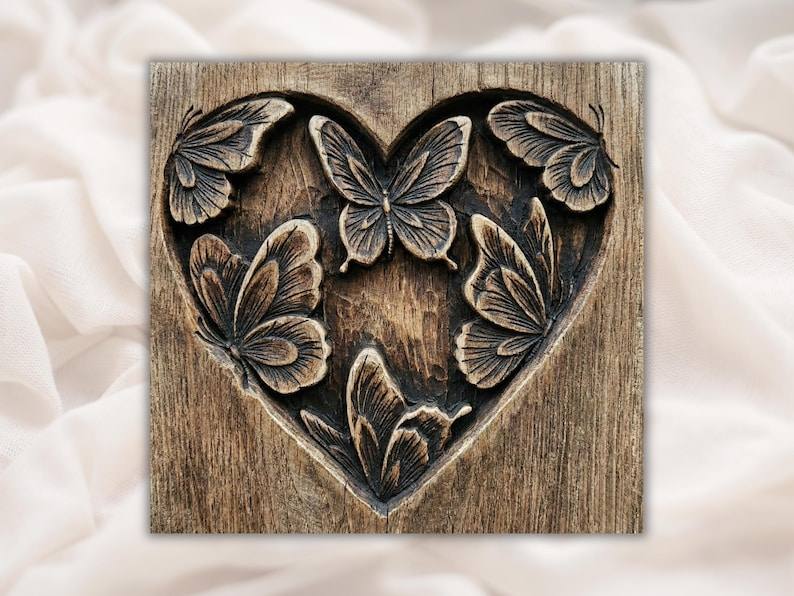
The Butterfly Heart Bas-Relief STL for CNC, Laser and 3D Print is the one in the photographs: a clean silhouette, strong subject-to-background contrast, and small enough to test on a coaster.
Download the butterfly heart · $5.20

The Bald Eagle Head Bas-Relief STL with Wood Grain Detail is a single bold subject with a graded background, which is exactly the shape a laser wants. Feathers burn beautifully in tone.
Download the eagle head · $6.39

The Scaled Carp Fish Bas-Relief STL for CNC, Laser and 3D Print was modelled with laser and print in mind: overlapping scales that read as tone as well as they read as depth.
Beyond those, the wildlife portraits, religious panels and floral collection convert well. Wide landscapes and multi-figure scenes are possible but need more tuning; the depth-grading test in our file-quality guide is a good predictor of how a file will burn.
Laser Studio: the whole workflow in one app

Everything above can be done with a chain of free tools, and for a first test that is fine. It is also how we did it for two years, until the chain got long enough that we wrote our own application. Laser Studio is a desktop app for Windows that takes an STL, or a photograph, and turns it into laser-ready art, offline, on your own machine.
For relief files specifically, it does the conversion step properly and then keeps going:
- True height maps from STL, orthographic, 8-bit or 16-bit, with gap filling so a mesh with tiny holes does not leave white specks in the burn.
- 3D-illusion rendering: a raking-light and ambient-occlusion pass that makes a flat tonal burn read as sculpture, with relief strength, light angle and contrast under your control. This is the look in the photographs on this page.
- Nine dithering modes for photo engraving, plus a compare-all view, and shape masks (circle, heart, badge, hexagon) with a raised border frame.
- Smart export at the exact size in millimetres, inches or pixels and the DPI your machine wants, for diode and CO2, with a burn-on-wood preview before you commit a board.
- A calibration kit: a grayscale wedge, a power-and-speed grid and a settings log card, so the "settings to start from" section above becomes measured numbers for your laser and your wood.
- Product makers built in: coasters, tumbler wraps, star maps, client proofs, job cards and care cards, so a relief file becomes a thing you can sell.
- CNC Match: carve one of these STLs on your CNC, photograph it on the laser bed, and burn text or shading exactly onto the carving. Alignment is typically within about a millimetre; check the outline and test on scrap first.
It runs offline, it never uploads your files anywhere, and you own it outright rather than renting it. It is $40, once.
Questions people ask
Can a laser engraver use STL files?
Yes, once the STL is converted to a grayscale depth map. The laser engraves the map with power following the tone, and the result reads as relief.
What is the best laser for relief engraving?
Any modern diode of 10 W and up will do it on light woods, leather and slate. A CO2 machine is faster and gives a smoother tonal range, and can also run 3D sliced mode to cut real depth.
Which wood is best for laser engraving a relief?
Maple, birch plywood or basswood: pale, even, fine-grained. Avoid figured walnut, oak and pine, whose grain competes with the image.
Should I use dithering?
No. Dithering is for photographs. A depth map is a smooth gradient and should be engraved in grayscale or pass-through mode.
What lines-per-inch setting for a depth engraving?
200 to 270. Higher on a diode causes overburn and blur; lower shows scan lines.
Is there one app that does the STL to depth map step properly?
Laser Studio, our own Windows app: true 8 and 16-bit height maps from STL, a 3D-illusion render, dithering, calibration and export at your size and DPI, offline, for $40 once.
What is 3D sliced mode?
A multi-pass mode that treats the depth map as layers and removes more material where the map is darker, producing a shallow physical relief. Best on CO2 and fibre machines and on materials like acrylic, hardboard and leather.
Lasers and routers solve the same problem from opposite ends. The router carves real depth; the laser paints it in tone. Both start from the same file, and both live or die on the same thing: how much depth the file really has. Convert it carefully, burn a test square, and choose a quiet material, and the results are hard to tell from a carving at arm's length.
The free starter pack is a good set to work out your settings on before you buy anything, and the full catalogue is here when you have.
Jolly, DigitalChiselCo