There is a quiet truth in the digital download world: most of the bas-relief STL files for sale on the big marketplaces have never been carved by the person selling them. They look fine in a 3D viewer. They look great in the listing picture. They fall apart on a real router, usually around hour two, and the buyer blames their machine.
This guide is how to tell the difference before you spend the money, and, more importantly, before you spend a board and a Saturday. It covers the four things a file has to do, the one signal that predicts a good carve better than anything else, how to inspect a file in five minutes with free tools, and the seven red flags you can spot from the listing alone.

In this guide
- The four things a good file does
- Depth grading: the one signal that predicts the carve
- Feature size versus the bit
- Mesh density: why more triangles is not better
- Watertight geometry, and what happens when it is not
- Undercuts: the file must be a height map
- The AI question, honestly
- Seven red flags you can see on the listing
- How to inspect a file you already own, in five minutes
- The standard we hold ourselves to
- Questions people ask
The four things a good file does
A bas-relief STL is doing its job when:
- It opens in your CAM without errors or warnings. When you import an STL, Aspire, VCarve, Carveco and Fusion all check the mesh on the way in. A clean file loads silently and appears at the size the seller stated. A poor one throws up a dialog, or three: "open edges found", "non-manifold geometry", "multiple shells detected", "normals are inconsistent, repair?" Each of those is the software telling you the surface is not closed, and each "repair" it offers is a guess at what the modeller meant. Sometimes the guess is right. Often it fills a hole with a flat patch that becomes a plateau in your carving, or flips a region so the cutter tries to machine the underside of a leaf. A file you have to click through to open is a file that was never opened by the person who sold it.
- The preview matches the listing picture. Same proportions, same depth, same level of detail. If the listing shows crisp feathers and the CAM shows a smooth blob, one of them is lying, and it is never the CAM.
- It carves cleanly at the listed size with the bits the seller recommends. Which requires the seller to have listed a size and a bit.
- The geometry is watertight. No holes, no flipped triangles, no internal walls. These are what make a cutter dive through your panel at hour two.
That is the whole standard. Four conditions. Most marketplace files fail at least one, and the rest of this article is how each failure looks up close.
Depth grading: the one signal that predicts the carve

If you learn one thing here, learn this. Open the file in any viewer and rotate it until you are looking along the surface, almost edge-on. A good relief has distinct, countable levels: sky behind mountains behind trees behind the subject, each visibly separated in Z. A bad relief is a smooth hill. Everything blends into everything else, and the "deepest" point is 2 mm below the "highest" on a panel that should have 12.
Depth grading is the difference between a carving that reads from across the room and one that needs you to squint. It is also the thing you cannot fix. You can scale a flat file deeper, but you are stretching noise; the layers were never modelled, so there is nothing to stretch. The depth rule in our scaling guide assumes the file had layers to begin with.
Numbers to expect. Our own files ship with a total relief anywhere from 12 mm up to 60 mm, depending on the size of the design and how much is going on in it. A single-subject plaque at 300 mm sits near the bottom of that range; a large multi-layer scene, or a face where the eye socket, the brow and the crown of thorns each need their own level, sits near the top. The principle behind the range is simple: the thicker the relief, the more detail it can hold, because every feature gets more height to separate itself from its neighbour and more shadow to be seen by. Within whatever total the file has, the main subject should stand at least 4 or 5 mm proud of what is behind it, and a face needs 8 mm or more of its own.
You do not have to carve at the shipped depth. A 40 mm relief scaled uniformly to a 300 mm board becomes a 15 mm relief and still reads, because the layers were modelled and survive the scaling. What cannot be rescued is the opposite case: a file whose entire Z range is under 5 mm at 400 mm wide was never a relief. It is an embossing, and scaling it deeper only stretches the noise.
Feature size versus the bit
A file can be beautifully graded and still carve badly if its finest features are smaller than any cutter can render at your size. The rule of thumb: the smallest feature you want to see must be at least 2.5 times the tip diameter of your finishing bit. A 1/16 inch tapered ball cleanly renders features of 4 mm and up; a 1/32 inch, 2 mm and up.
Good files are modelled with this in mind. Hair is grouped into locks rather than strands. Feathers have real width. Text has stroke. Bad files, and most AI-generated ones, are covered in sub-millimetre noise that looks like detail in a render and turns to fuzz under a cutter. If a listing's close-up shows individual hairs, ask yourself what bit is going to cut them.
Mesh density: why more triangles is not better
Triangle count is the number sellers love to quote and the least useful one. A 50,000-triangle file authored by someone who understands form carves better than a 500,000-triangle mess.
- Under 20,000 triangles is a red flag for wall art. Faces and flowers cannot be described with so few facets without visible polygon edges at any carving size.
- 60,000 to 180,000 is the useful range for a 300 to 600 mm panel. Enough for crisp toolpaths, fast enough to preview.
- Over 500,000 is usually detail below what any bit can cut, and it slows the CAM to a crawl. Good studios decimate intelligently before release; a huge file often means nobody looked at it after export.
Density also has to be even. A file with a million triangles in the face and a thousand in the background will show faceting in the sky. Rotate the model with a wireframe on and look for that.
Watertight geometry, and what happens when it is not

An STL describes a surface, and the CAM treats that surface as the top of a solid. That only works if the surface is closed: no holes, no overlapping triangles, no triangles facing the wrong way, no stray shells floating inside. A mesh like that is called watertight, or manifold.
When a file is not watertight, one of two things happens. The kind outcome is that your CAM refuses it. The unkind outcome is that it accepts it and generates a toolpath that includes a plunge through the stock wherever the geometry has a hole, because from the CAM's point of view the surface really is 8 mm lower there. You find out at hour two, on the good board.
Checking is free and takes a minute, and a file that fails is not worth repairing yourself. Tools are in the inspection section below.
Undercuts: the file must be a height map
A three-axis router cuts straight down. It cannot reach under anything. So a relief for a router must be a height map: for every point on the panel, exactly one surface height. A leaf curling over so that its edge hangs above the background is fine as a sculpture and impossible as a relief; the cutter will either ignore the underside or, worse, chew straight through the leaf to reach it.
Files converted from full 3D models, and many AI-generated files, are full of these. The test is simple: look at the model straight down from above. If any part of the surface is hidden behind another part, that hidden part cannot be carved. Good relief modellers flatten and fake those overlaps on purpose; the eye reads them as depth anyway.
The AI question, honestly
You will see listings dismissed as "AI files", and you will see files that deserve it: one smooth blob, no depth grading, noise instead of detail, undercuts everywhere, never opened in a CAM. That is not an AI problem. That is a nobody-checked problem, and hand-modelled files that nobody checked fail the same way.
Modern relief modelling uses software assistance at almost every step, in every studio, including ours. What decides whether a file carves is not how the first surface was made. It is whether someone then graded the depth, sized the features to a real bit, removed the undercuts, made the mesh watertight, opened it in a CAM, and put a size range on the listing. Judge the file by the four conditions at the top of this page. They are the same whatever made it.
Seven red flags you can see on the listing
- The preview is a glossy render, not a CAM screenshot or a carved photo. Renders hide flat depth. A seller who has carved the file shows a carve, or at least the toolpath preview.
- No recommended size range. "Scale to any size" means "we never tested it at any size". A tested file says something like "carves cleanly between 250 and 600 mm wide".
- No bit recommendation. Knowing which bit is half of carving. Sellers who have done it say so.
- Individual hairs and pores in the close-up. Detail smaller than any bit is decoration for the render, and fuzz for you.
- Adjectives instead of numbers. "Premium, stunning, exclusive" versus "14 mm relief, 120k triangles, tested in VCarve". Makers describe geometry.
- Priced at a dollar or two. A relief modelled and checked to a real standard takes hours of work. At that price either the work was not done or the file was taken from someone who did it.
- Nobody to email. When a file misbehaves you want a reply. Marketplace sellers are often gone before your CAM finishes loading.
How to inspect a file you already own, in five minutes
Every tool here is free.
- Open it in your CAM and read the import dialog. Warnings about open edges, flipped normals or multiple shells are the file telling you it is broken.
- Rotate to the profile view. Count the depth levels. If you cannot, stop here; nothing downstream fixes it.
- Check it is watertight. Windows' built-in 3D Builder flags problems on open and offers a repair. Meshmixer's Analysis → Inspector highlights holes and non-manifold edges in red. PrusaSlicer, Bambu Studio and Cura all run a mesh check on import and will say "errors detected". Blender's 3D-Print Toolbox lists them.
- Look straight down for undercuts. Anything hidden beneath something else will not carve.
- Check the triangle count and its evenness. Any of the tools above shows it. 60,000 to 180,000, spread evenly, for a wall panel.
- Generate a finishing toolpath at your size and simulate it. The simulation, unlike the model render, knows how big your bit is. If the eye disappears in the simulation it will disappear in the wood. The test tile method is the extension of this.
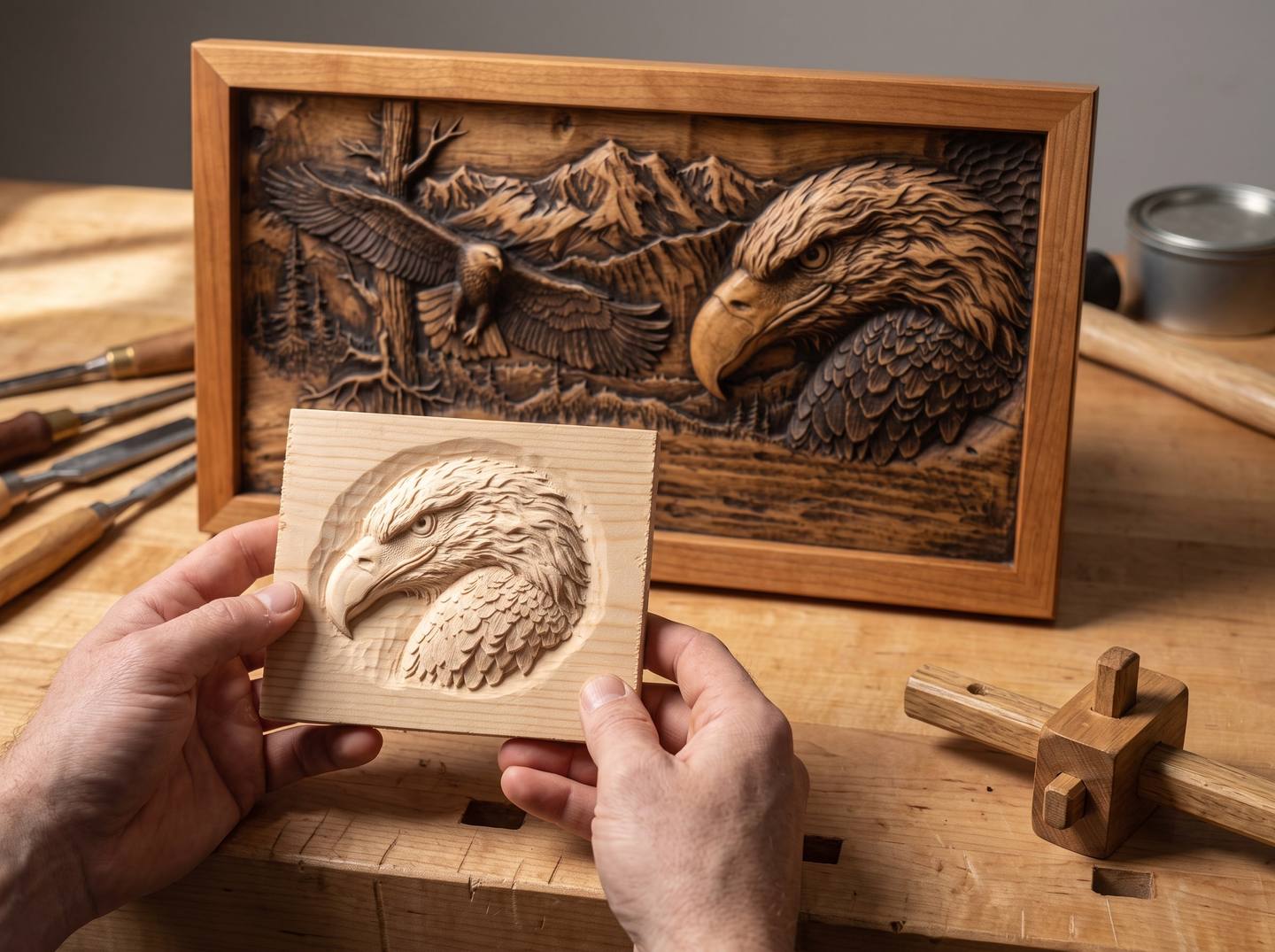
- Carve the most detailed 80 mm on scrap. Ten minutes on pine. If it reads there, it reads on walnut.
The standard we hold ourselves to
Every file in the catalogue is checked for watertight geometry before it goes on the site, is opened and toolpathed in a real CAM, and carries a recommended size range on its product page that comes from that check rather than from marketing. Designs that have been through our full verification carry a Verified badge on the listing. When a file misbehaves in your CAM, that is our problem: send it over with the software and the size, and you will get a working version back, not a form reply.
If you want to test all of the above against a real file, the Face of Christ and Crucifixion Bas-Relief STL with Crown of Thorns is the hardest honest test in the catalogue: a face, deep grading, and detail that is sized for a 1/16 inch bit at 300 mm and a 1/32 inch below that.

Download the Face of Christ panel · $16.00
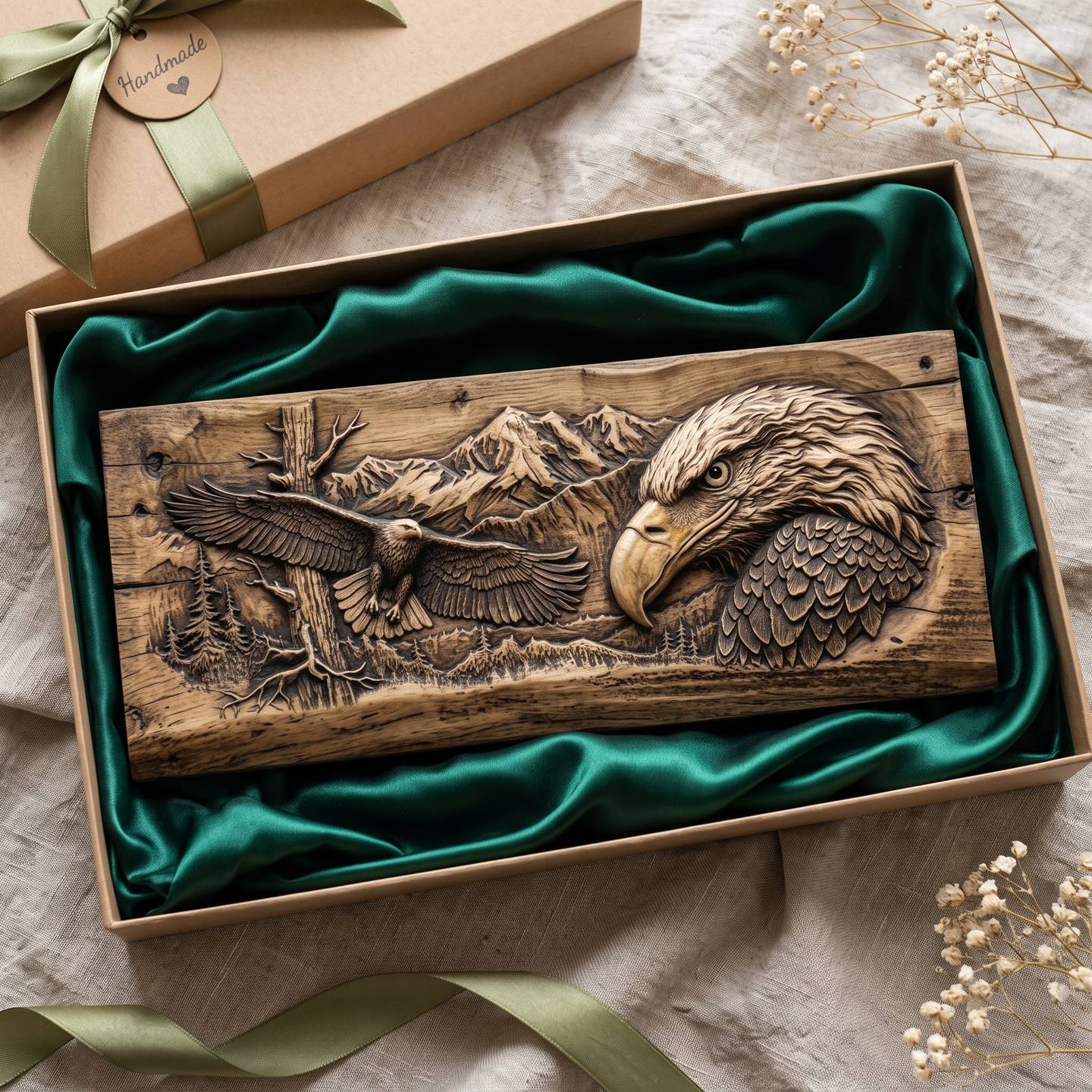
For a scene with clear layering to practise the profile test on, the Bald Eagle Mountain Scene Bas-Relief STL with Soaring Eagle has sky, mountains, trees and the bird at four distinct depths.
Download the Bald Eagle Mountain panel · $10.39
Questions people ask
What is the single best sign of a good relief STL?
Depth grading. Look at it edge-on. If you can count the levels, the file was modelled by someone who understood relief. If it is one smooth bump, nothing you do will make it read.
How many triangles should a relief STL have?
60,000 to 180,000 for a wall panel, spread evenly. Fewer shows facets; far more is wasted below the bit and slows your CAM.
What does watertight mean?
A closed surface: no holes, no flipped triangles, no internal shells. A CAM treats a hole as a drop in the surface and sends the cutter through your panel.
Can I repair a bad file?
Holes and flipped normals, sometimes, with 3D Builder or Meshmixer. Flat depth grading and undercuts, no. Those were decisions made when the file was modelled.
How do I check a file for free?
3D Builder (Windows), Meshmixer, PrusaSlicer, Bambu Studio, Cura or Blender all flag mesh errors on import. Your CAM's toolpath simulation tells you whether the detail survives your bit.
Are AI-generated STL files bad?
Unchecked files are bad, whatever made them. Judge a file by depth grading, feature size, watertightness and undercuts, and by whether the seller lists a size and a bit. Those four things predict the carve; the tool that made the first surface does not.
Why does the listing picture look sharper than my carve?
Because renders do not have a bit. Simulate the toolpath at your size, or carve 80 mm of it on scrap, and you will see what the wood will show.
Four conditions, one profile test, seven red flags, and a scrap of pine. That is enough to never lose a board to a bad file again. If a file passes and still disappoints, the answer is nearly always in scaling or finishing, and both of those are fixable.
The free starter pack is the cheapest way to run every check in this article against files that were made to pass them.
If you want the numbers behind that judgement rather than the opinion, we published them: The State of CNC Relief Carving 2026 analyses a full year of real sales across 1,226 designs, including which subjects earn their bench time and which quietly do not.
Jolly, DigitalChiselCo