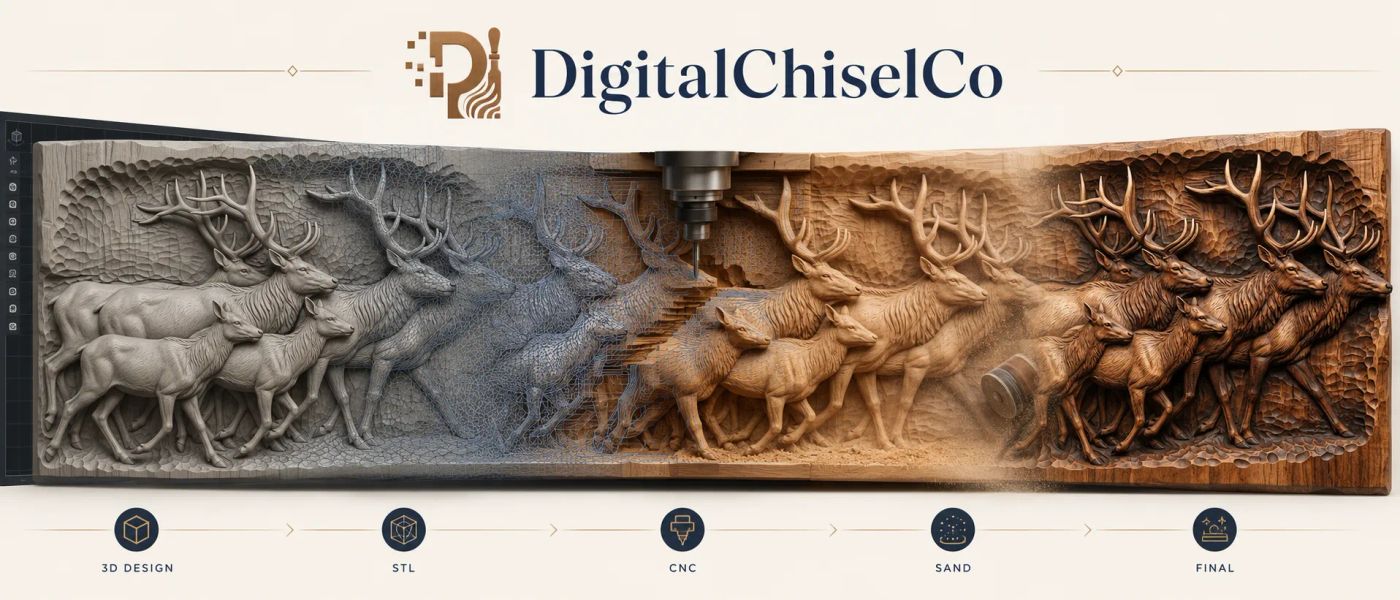
Sooner or later a relief STL lands on your desk that is thicker than the board on your bench. The carving is perfect, the size is right, and the file wants 55 mm of wood when you have 45. The usual fix is to squash it: type a smaller Z height into the CAM software and let it scale the model down. That works, but it quietly takes depth out of the carving, which is the part you bought the file for.
Most thick reliefs do not need squashing at all. They carry spare material under the deepest cut: solid backing that the router never touches and that only makes you buy a thicker board. Take that off the back and the carving keeps every millimetre of its depth. This guide shows how, on a real file, and why the relief should be levelled first.
In this guide
- Squash or trim: what is the difference?
- Why level the relief first
- Trimming a relief STL, step by step
- How thin can it go?
- Scaling and board thickness
- When to leave the back alone
- Questions people ask
Squash or trim: what is the difference?
A relief has two parts stacked on top of each other: the carving, from the rim down to the deepest cut, and the backing, the solid wood between the deepest cut and the flat back. When a file is too thick, one of the two has to give.
- Squashing scales the whole model in height. The backing gets thinner, but so does every scale, petal and fold in the carving. A 45 mm carving squashed into 36 mm loses a fifth of its depth everywhere, and the shadows that make a relief look alive get shallower with it.
- Trimming slides a flat cut up from the back and removes only backing. The carving is not touched: the same depth, the same undercut-free shape, the same shadows.
Trimming only works while there is backing to remove, and it only works cleanly if the relief sits level. That second part is where most quick fixes go wrong.
Why level the relief first
Many relief files lean a little. The rim on one side sits higher than the other, or the frame rises and falls as it goes round, a leftover from how the model was made. You rarely see it on screen. You do see it in the wood: a flat cut under a leaning relief takes more from the low side, and that side can run out of backing long before the high side does. On a tight board, the deepest cuts on the low side come out through the back.
Levelling fixes that before anything is cut. The rim is measured all the way round, the lean is taken out with a plane, and on a framed relief the slow rise and fall of the frame is evened out too. Only then does the cut slide up from the back, parallel to a rim that is now flat. Every part of the carving keeps the same backing under it.
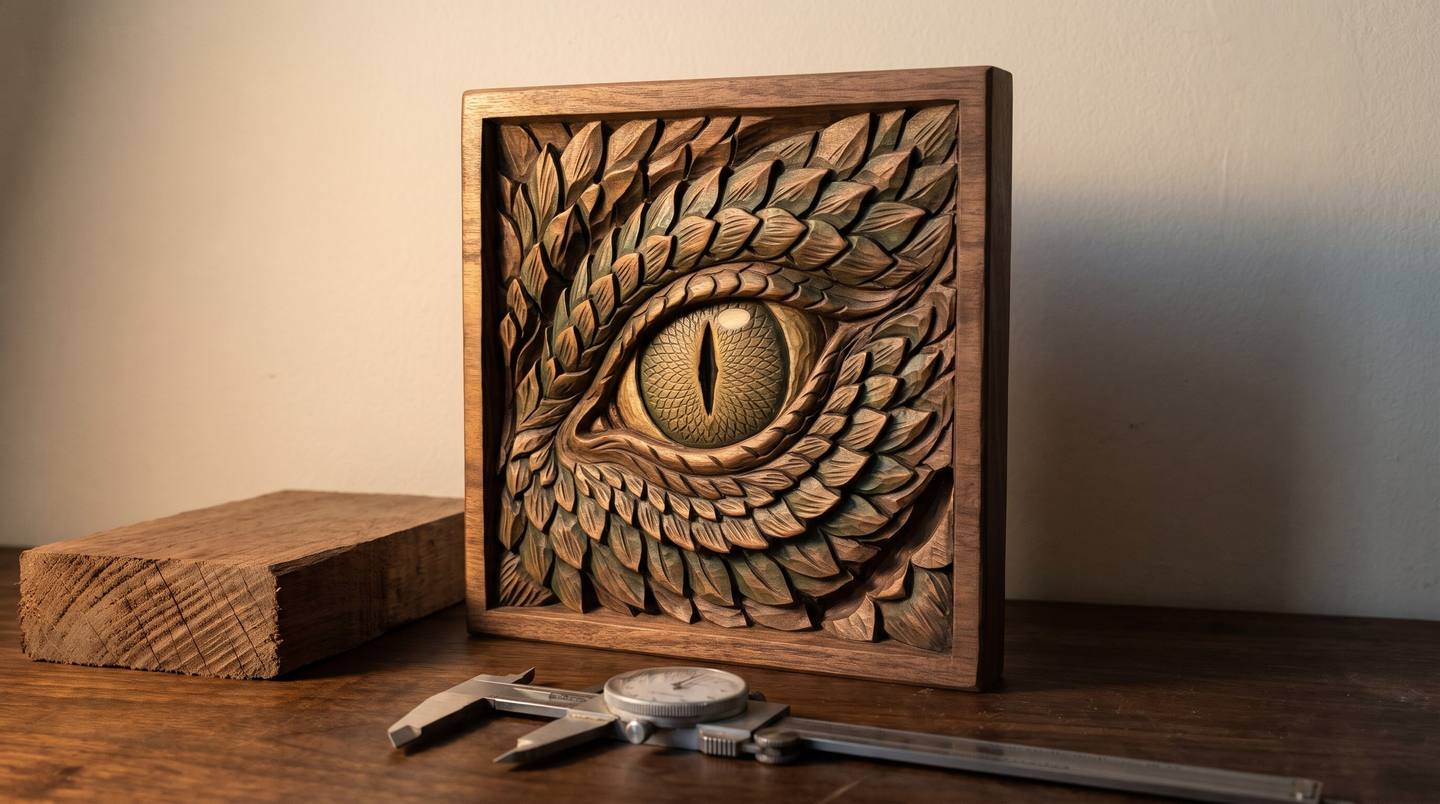
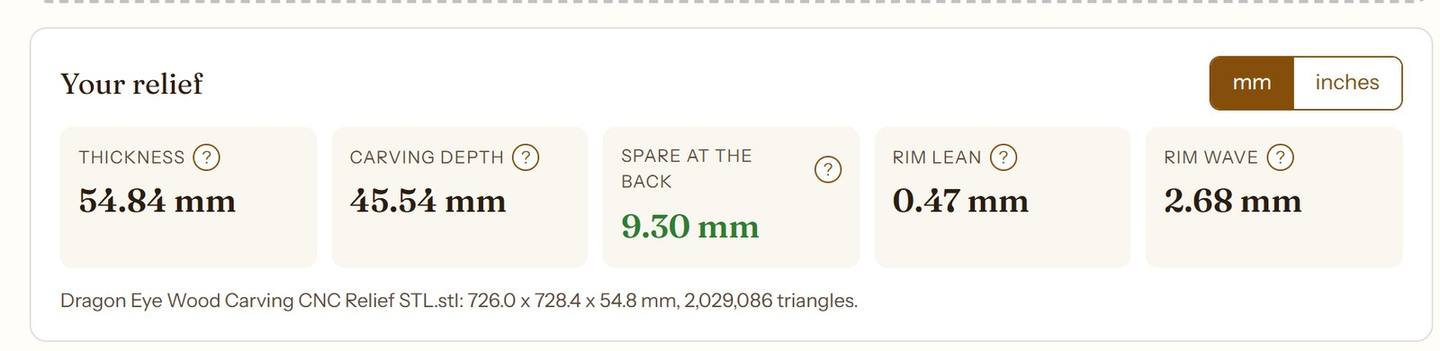
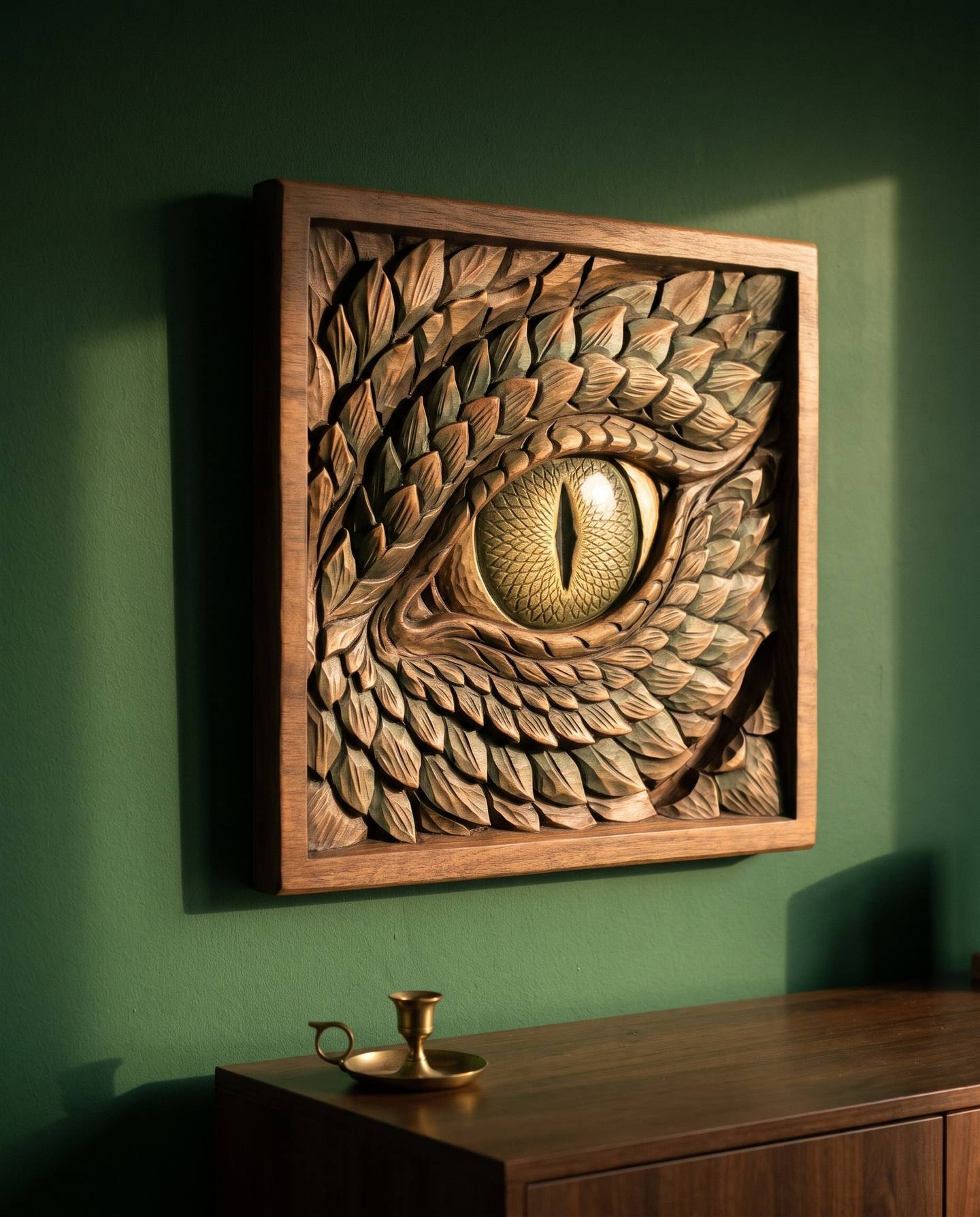
On the Dragon Eye file used in this guide, the rim leaned 0.47 mm from one side to the other and rose and fell 2.68 mm going round the frame. After levelling, the lean was 0.14 mm and the wave 1.47 mm. Small numbers on a 726 mm panel, but enough to decide whether the deepest scales keep their floor.
Trimming a relief STL, step by step
The free Relief Leveller and Back Trimmer does both jobs in your browser. The file is never uploaded: it runs inside the page, so a two-million-triangle relief stays on your computer. Here it is on the full-size Dragon Eye STL, 726 by 728 mm and 54.84 mm thick.
1. Drop the file in and read it
The tool finds the flat back and the rim, levels a copy, and reports what it found. This file is 54.84 mm thick, its carving is 45.54 mm deep after levelling, and there is 9.30 mm of spare material at the back. That 9.30 mm is what the trim can take away.
2. Choose the new thickness
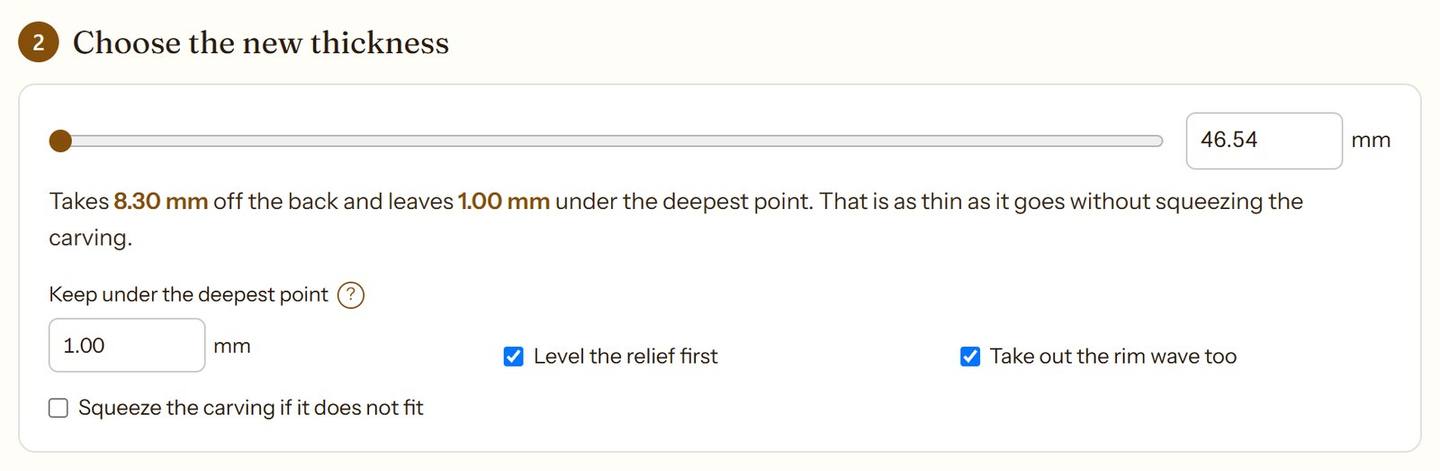
The slider starts at the thinnest the file can go without touching the carving: the carving depth plus a floor under the deepest point. The floor defaults to 1 mm (0.04 in), or less if the file already had less. Type an exact thickness if your board is measured, and raise the floor if the panel will hang on a keyhole slot or needs a stronger back.
3. Look at the cut before you take it
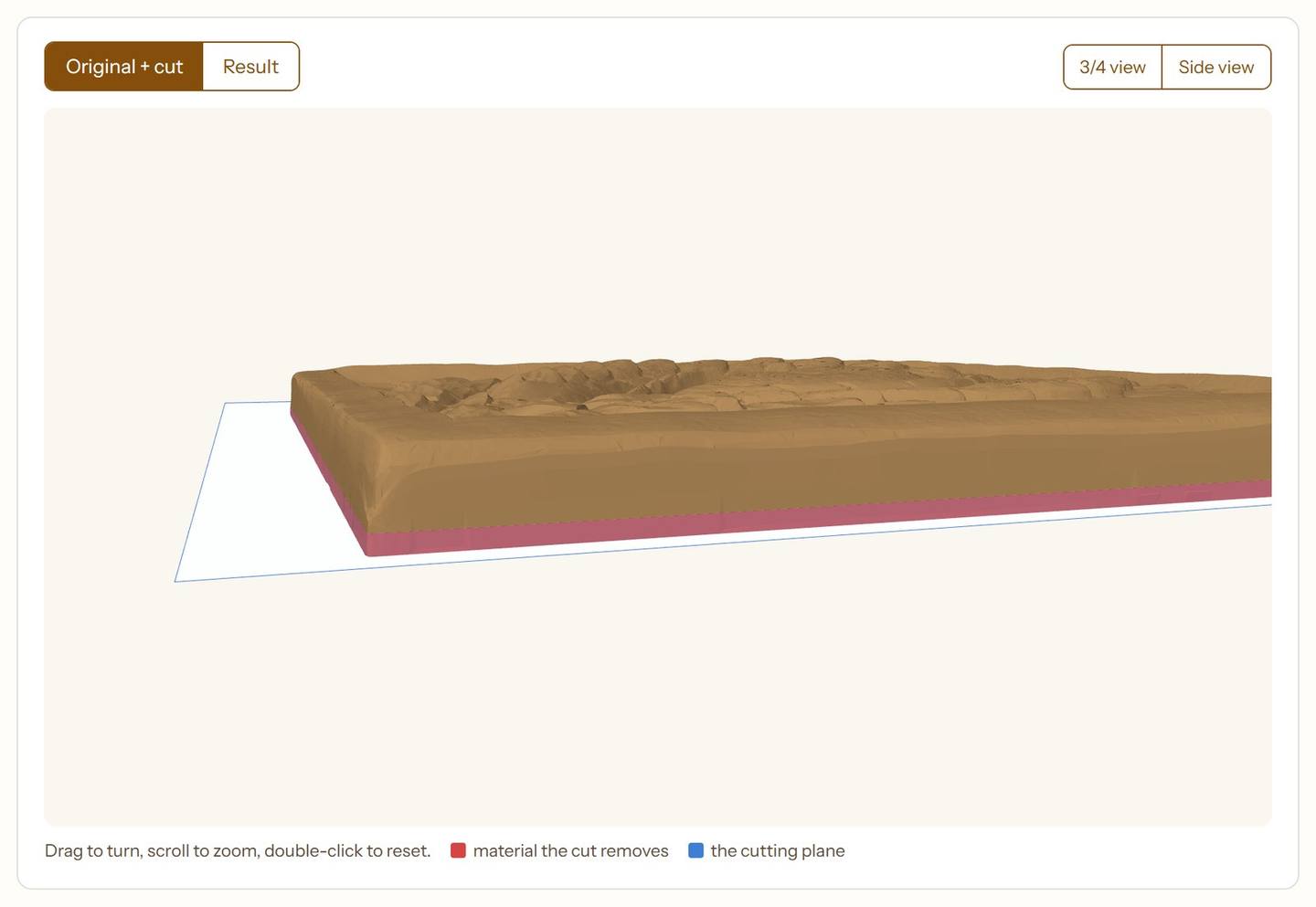
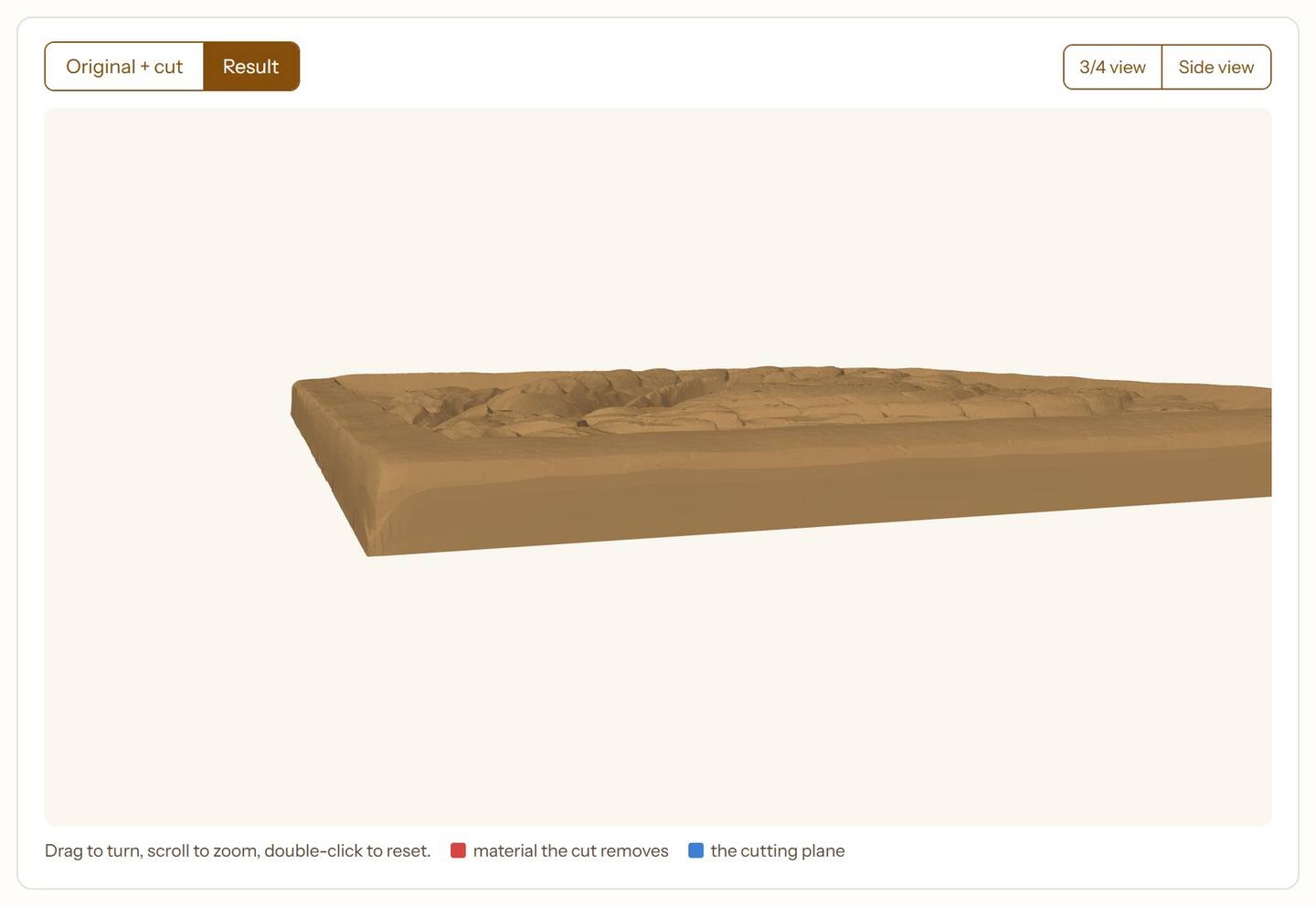
The 3D view shows the original with the cutting plane under it. Everything below the plane, the material the cut will remove, turns red. The side view zooms in on an edge so you can see the band clearly even on a wide panel. Switch to the result and the red band is gone while the carving above it has not changed.
4. Check it and download
The trimmed file is checked again with the same checks as our STL Auto-Repair: holes, open edges, bad edges and separate pieces. The trim only moves points of the carved top straight down and keeps the back as one flat face, so a watertight file stays watertight, with the same number of triangles it came in with.
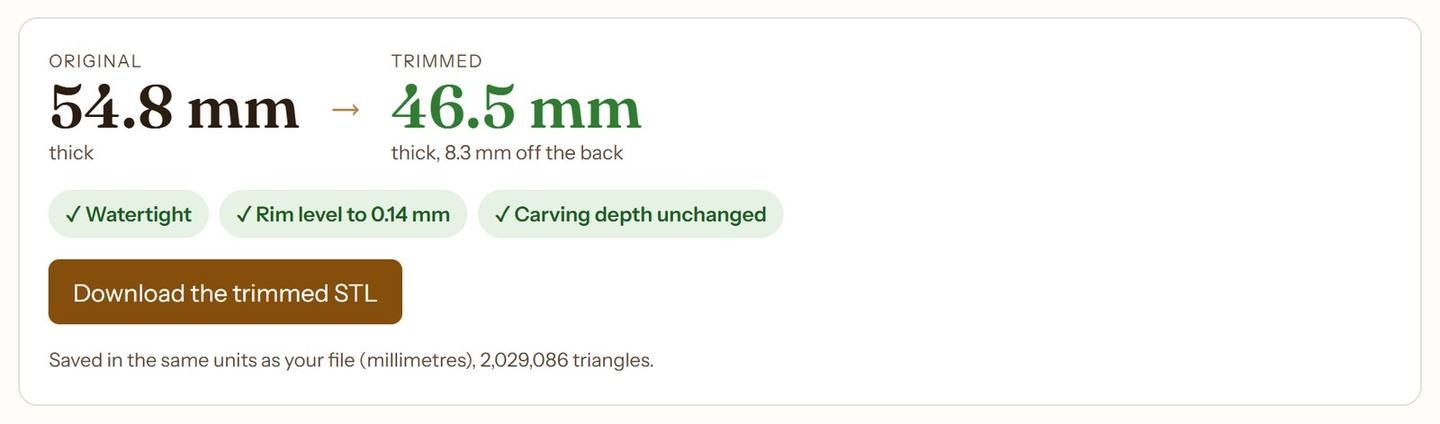

The download keeps your file's units and says the new thickness in its name, so it is easy to tell apart from the original.
How thin can it go?
As thin as the carving plus the floor, and no thinner without changing the carving. On the Dragon Eye that is 45.54 mm of carving plus 1 mm of floor: 46.54 mm. Ask for less and the tool stops there and tells you so.
If the board really is thinner, tick Squeeze the carving if it does not fit. Then, and only then, the carving is made shallower, and the tool says by how much. The Dragon Eye at 40 mm keeps 86% of its depth. That is still the trim doing most of the work: 8.3 mm of backing comes off first, and the squeeze only covers the last 6.5 mm. Squashing the whole file to 40 mm would have kept 73%.
Scaling and board thickness
Every number in a relief scales with it. Carve the 726 mm Dragon Eye at 300 mm wide and everything shrinks to 41%: the original file wants 22.7 mm of wood, the trimmed one 19.2 mm. That is the difference between buying thicker stock and using what is already in the rack: a board planed on both sides from 4/4 lumber usually measures about 20 mm (13/16 in), too thin for the original and just right for the trimmed file.
Two habits help:
- Measure the board, not the label. Nominal sizes are rough-sawn sizes. A caliper across the planed board is the number to type into the tool.
- Keep a little in hand. Leave a millimetre or so between the file and the board for surfacing the top flat before you carve. Our guide to scaling STL files for CNC routers covers sizing in the CAM software.
Before the job runs, drop the trimmed file into Will it cut? to check bit reach and carving time at the size you will carve it.
When to leave the back alone
Backing is not always waste. Keep more under the carving when:
- It hangs on a keyhole slot or sawtooth hanger. A keyhole bit needs wood to cut into. Set the floor to the slot depth plus a few millimetres.
- It is a cutting board, tray or anything that gets used. Those need real thickness under the carving to stay stiff and not crack.
- The wood moves. Wide, thin panels of some species cup with the seasons. A little extra backing keeps a big panel flat.
- It is not a flat-backed relief. The tool is made for plaques, panels and signs with a flat back. A model carved on both sides, or a sculpture in the round, has no backing to trim.
Deep reliefs worth trimming
Deep designs carry the most spare material. These three are in the shop, each checked watertight with a flat back before release:


Get the Mermaid Heart Scallop · $6.39
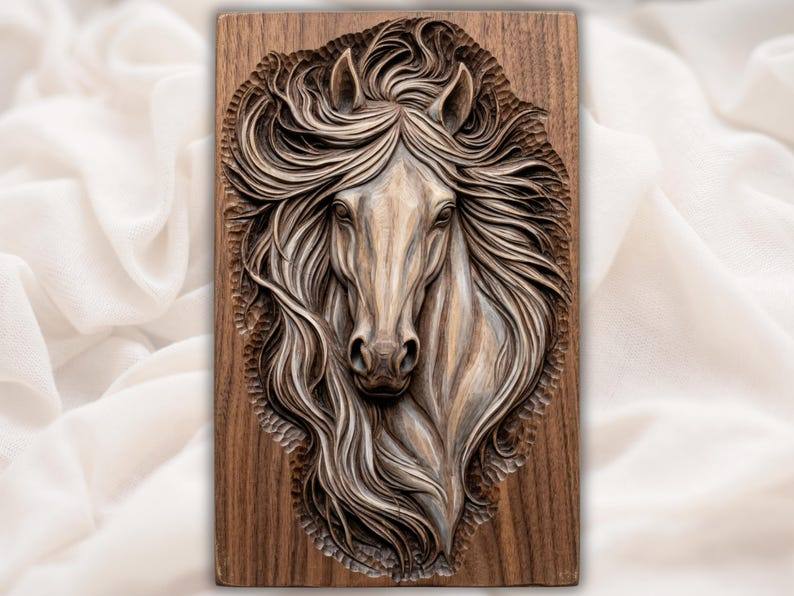
Get the Flowing Mane Stallion · $6.39
Questions people ask
Does trimming change the carving?
No. Only the backing under the deepest cut is removed. The carved surface keeps its exact shape and depth unless you tick the squeeze option, and the tool says when it does.
Can I do this in Aspire, VCarve or Carveco?
Those programs make it easy to set a model's height, which squashes it. Trimming the back of an imported STL while keeping the carving depth, with the levelling first, is what the free tool is for. Trim the file, then import it as usual.
Will the trimmed STL still be watertight?
Yes, if it was watertight to begin with. Points only move straight down and the back stays one flat face, so no triangle loses a neighbour. The file is checked again after the trim and the result is shown. If your file had holes to begin with, fix it first in the STL Auto-Repair.
My file is in inches. Does that matter?
No. STL files carry no units; the tool guesses from the size, shows millimetres or inches as you choose, and saves the file in the units it came in.
What does levelling do to a relief that is already level?
Almost nothing. If the rim is already even, the correction is a fraction of a millimetre and the trim is a plain flat cut. You can also switch levelling off.
Try it on your thickest file: Relief Leveller and Back Trimmer. It is free, there is no signup, and the file never leaves your computer.